Help
Import a backlist
You can add a whole backlist in one go. Upload markdown files, one per book, upload a CSV describing all of them, or paste a list of ISBNs and let byline look them up. Whichever you choose, you review and edit every title before anything is published. This page walks through it.
Use markdown if your books have real blurbs, because the blurb goes in the body of the file where it keeps its paragraphs. Use a CSV if you have a lot of titles and short descriptions, since one file covers all of them.
- 1
Open the importer
From your account, go to Your books and choose Import from a list, beside Add a book. The importer is for adding several titles at once; a single book is quicker through Add a book.
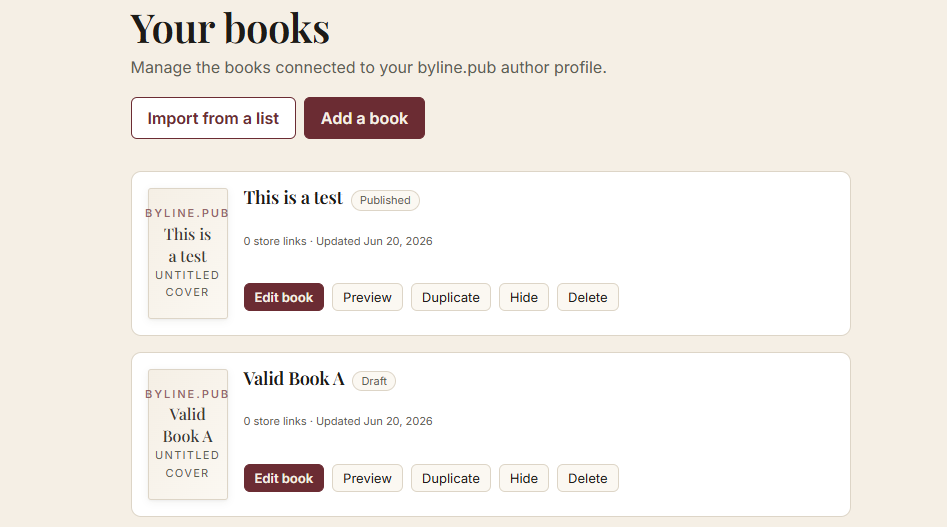
Your books → Import from a list. - 2
Choose your files, or paste a list of ISBNs
Three ways in, and they all end at the same review. Markdown files: choose as many as you like, one per book. A CSV with a header row: read column by column, so a book no catalogue has ever indexed still imports from what you typed. A plain list of ISBNs: one per line, and byline looks those up, with ISBN-10 and ISBN-13 both fine and hyphens or spaces ignored. Then choose Review these books.
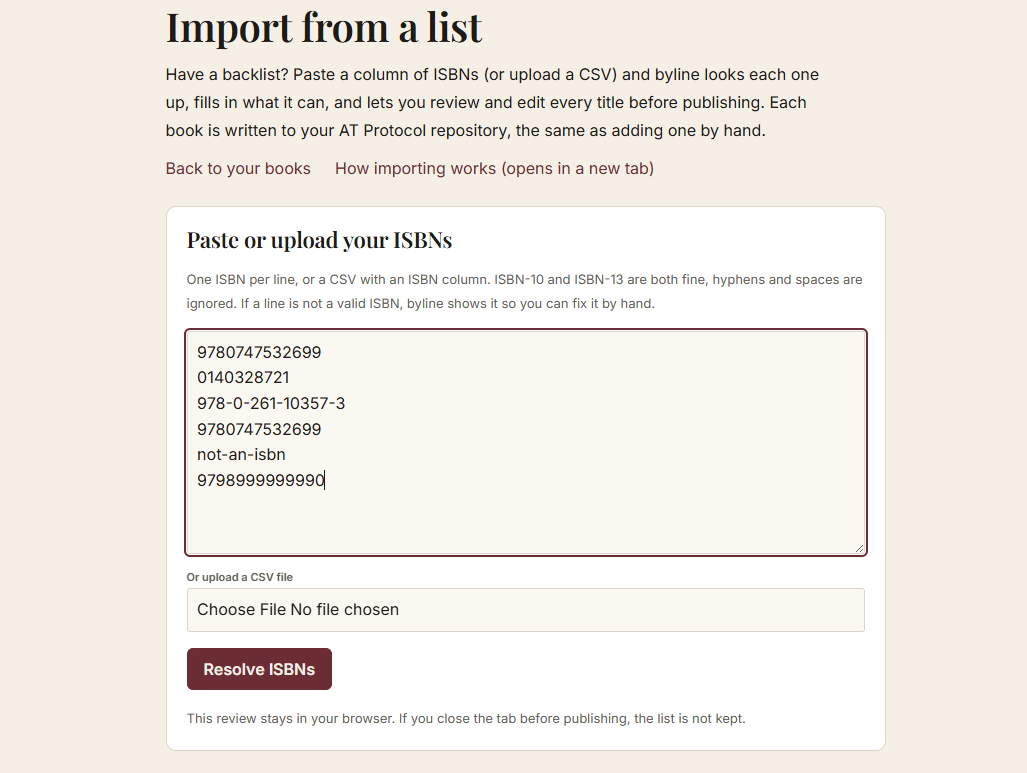
Markdown files, a CSV with a header row, or one ISBN per line. - 3
One markdown file, one book
A markdown file starts with three hyphens on their own line, then a block of details, then three hyphens again. Everything under that is the description, and it arrives exactly as you wrote it, paragraphs and formatting intact. That is the reason to use markdown for a long blurb: in a spreadsheet cell the same text needs quoting and loses its paragraph breaks. If you keep book pages in Hugo, Jekyll, Astro or Obsidian, you already have files shaped like this. Download the markdown template to start from.
- 4
Name your fields
byline matches your CSV header row, or your markdown keys, against the names in the table below. The names are the same either way. Case, spaces, underscores and hyphens do not matter, so Page Count, page_count and pagecount are one field. A name byline does not recognize is listed back to you at the top of the review, with the file it came from, and skipped; the rest still imports. Both templates have every field in them.
- 5
Keep markdown details to one line each
The block at the top is ordinary YAML frontmatter, the kind Hugo, Astro, Jekyll and Obsidian already write. byline reads all of it: a plain name: value, an indented block like identifiers or series, a dash list of genres, and a list of buy links or editions each with their own details. If a file has a key byline does not know, or a value in a shape it cannot use, the row names it and everything else still imports.
- 6
Let byline fill the gaps
Where a row has an ISBN, byline checks it against Open Library and fills in title, subtitle, publisher, page count, and release date. It only fills fields you left empty: what you put in your file always wins. Rows with no ISBN are not looked up at all. A lookup never brings back a cover: covers come from the image files you choose along with your books.
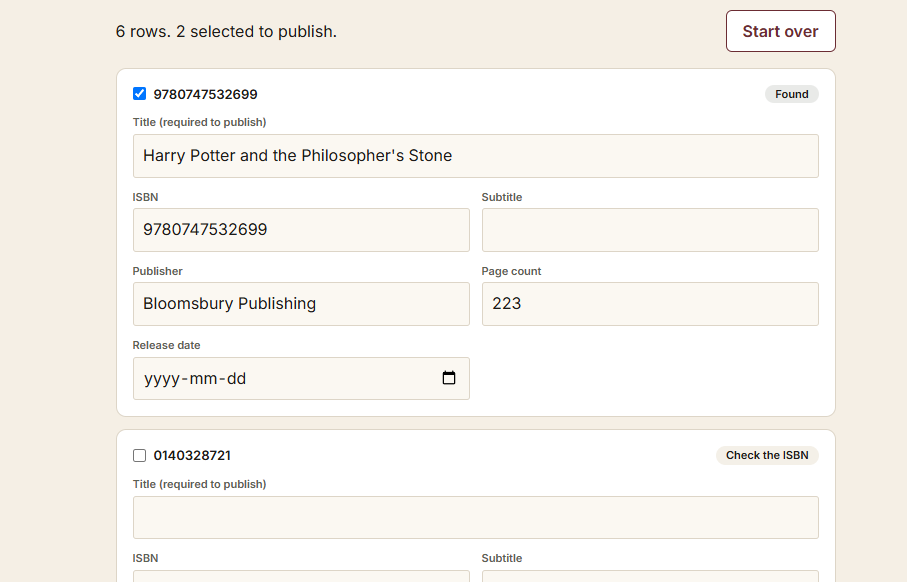
One row per book, every field editable. - 7
Read the status on each row
Every row names the file or the line it came from, so a bad key in one of twelve files is easy to find. Found means Open Library returned details. From your file means byline did not look the row up, because everything on it came out of your file. Enter details means the ISBN is valid but Open Library has nothing, so the row waits for you and stays selected. Check the ISBN means a line in a pasted list did not read as an ISBN. Nothing to publish means a row has neither a title nor a readable ISBN, and the file is shown underneath so you can see what byline read. Repeat in list means the same book appears twice. If two files share a title, both rows say so and both stay selected, because sometimes two books really do share a title.
- 8
Review and edit before publishing
Every field is yours to edit, and every row has a checkbox. A title is required to publish a row. The six fields you check most sit on the card; the rest are under More details. Uncheck anything you do not want, and fill in any row that came back empty. Your signed record is the source of truth, so nothing is published until you say so.
- 9
Choose a status, then publish
Pick the status for the batch (Published by default, since a backlist is usually already out). A row whose file set its own status keeps it, and the selector covers the rest. Then choose Publish, and byline writes each selected, titled row to your AT Protocol repository as its own book record, the same as adding one by hand.
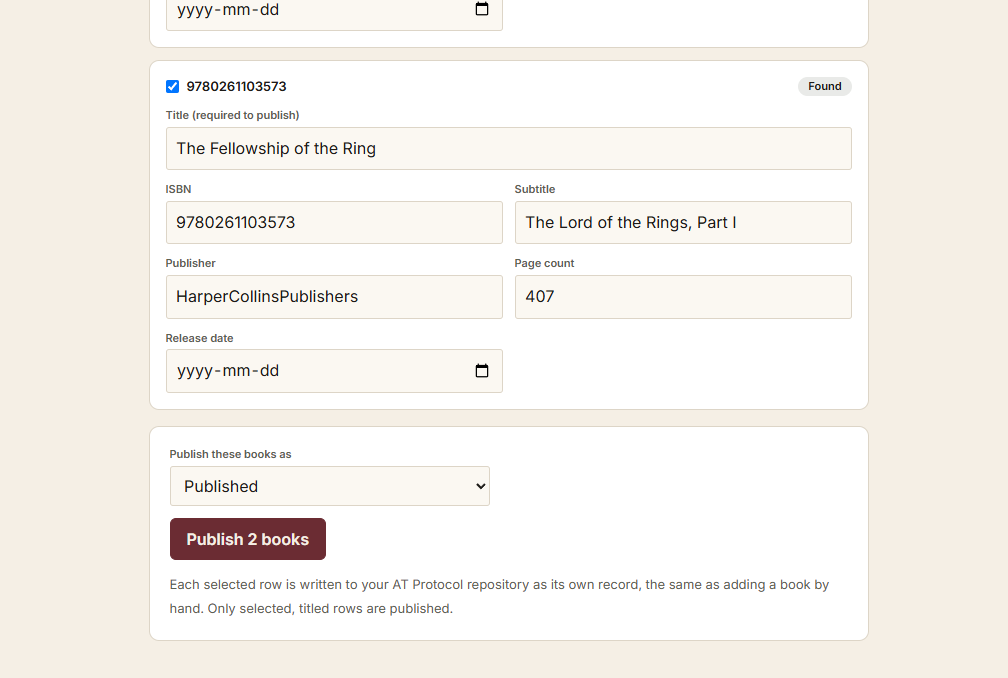
One status for the batch; only selected, titled rows are published. - 10
Larger batches publish in waves
byline publishes up to five books a minute. If you publish more than that, the rest wait, the button shows a short countdown, and they go out in the next minute. You can leave the tab open and let it finish.
The fields
Every field is optional except title. Leave out the ones you do not have. These names work as a CSV column heading or as a markdown key, with one exception noted in the table.
| Field | Also accepted | Notes |
|---|---|---|
| title | - | The only field byline needs. A book with no title cannot publish. |
| subtitle | - | As it appears on the cover. |
| tagline | - | One line, for the top of the book page. Plain text. |
| short description | blurb, summary | A sentence or two, for listings. |
| description | synopsis | The full description. In a markdown file this is the body text instead, which is easier. |
| isbn | isbn13, isbn10, ean | Either length, hyphens and spaces ignored. Optional. |
| asin | - | Amazon’s identifier. byline stores it; there is no lookup for it. |
| publisher | imprint | Your own imprint counts. |
| pages | page count | A whole number. |
| publication date | release date, pub date | Year first. See below. |
| copyright year | - | Four digits. |
| language | - | A code like en, or the language name. Written exactly as you type it. |
| genres | genre, categories | Several allowed, separated by a semicolon. |
| tags | keywords | Same, semicolon separated. |
| status | - | published, forthcoming, draft, or out of print. |
| cover | cover image, cover file | The file name of a cover image you choose along with your books. A path works: only the name at the end is matched. |
| cover alt | alt text | A sentence describing the cover, for a reader who cannot see it. |
| formats | format | Markdown files only. hardcover, paperback, ebook, audiobook, semicolon separated. |
| buy link | buy url, store link | One http address where readers can buy it. In a markdown file, buy_links takes several. |
| identifiers | - | Markdown files only. A block holding asin, so you can keep your identifiers together. |
| series | - | Markdown files only. A block holding name and number. Both show under the title on the book page. |
| buy_links | links | Markdown files only. A list of addresses, each with a store name, and one marked primary for the buy button. |
| editions | - | Markdown files only. A list of formats, each with its own isbn, publisher, pages and release date. |
Two things to get right
- Several values in one place: semicolon
- Genres, tags and formats take more than one value, separated by a semicolon:
Horror; Thriller. In a CSV a comma will not do, because a comma already separates your columns. In a markdown file the square-bracket form[Horror, Thriller]works too, if that is what your other tools write. - Dates: year first
- Write a publication date as
2017-01-13, year then month then day. byline leaves anything else blank and says so on the row, because 03/04/2011 is March in one country and April in another, and guessing would put the wrong date in your record.
Good to know
- The review list lives in your browser only. If you close the tab before publishing, the list is not kept. Publishing is what writes the records.
- Open Library is the only lookup source, and it is text only. A miss is normal, especially for self-published titles with an Amazon ASIN and no ISBN. Those import from your own file instead, which is what the CSV is for.
- Choose your cover images in the same selection as your books and byline pairs them up by name. A file saying
cover_image: blood.jpgtakes the image calledblood.jpg; a file that says nothing takes an image named after it, soblood.jpgpairs withblood.md. Covers do not count toward the hundred-book limit. - An address in a cover field is reported rather than fetched. byline imports the image files you hand it, so put the image in your selection or add the cover from the book page after publishing.
- Covers are shrunk in your browser before they are uploaded, the same as a cover you add by hand, so a large image off a designer is fine. A cover that will not upload is reported on its row and the book still publishes.
- A book page with no cover of its own falls back to Open Library’s image for that ISBN, which your browser loads and byline never copies. A cover you import is saved into your own repository instead.
- A markdown file carries an editions block, so an ISBN, page count, publisher or release date that belongs to one format is imported with it. There is a shorter way if you do not have those details: list the formats on one line and each becomes an edition using the book’s own publisher and page count. Use one or the other, and a file with both uses the editions block.
- A CSV carries one buy link and no per-format details, because a spreadsheet row has nowhere to put them. Pick markdown when you have either, and a CSV when you are importing a plain list.
- Values in a markdown file are read exactly as you type them, so
language: nois Norwegian. Some tools that read these files turn that into a No, which is the sort of thing that quietly loses a book. - You can mix the two. A selection of markdown files and one CSV lands in a single review, and a book that appears in both is flagged as a repeat.
- You can publish a book with no ISBN, in bulk as well as one at a time. A file of titles and no ISBN column imports fine.
- Everything filled in is yours to edit, before publishing and after. The record in your repository is always the version you approve.